Quickstart
In this tutorial, we will install Klaw with Docker, and request for a Apache Kafka® topic and verify its existence on Apache Kafka cluster.
1. Run the Docker script
docker run -d -t -i -e KLAW_CLUSTERAPI_ACCESS_BASE64_SECRET="dGhpcyBpcyBhIHNlY3JldCB0byBhY2Nlc3MgY2x1c3RlcmFwaQ==" -p 9343:9343 --name klaw-cluster-api aivenoy/klaw-cluster-api:nightly --add-host=host.docker.internal:host-gateway &&
docker run -d -t -i -e KLAW_UIAPI_SERVERS=http://host.docker.internal:9097  -e KLAW_CLUSTERAPI_ACCESS_BASE64_SECRET="dGhpcyBpcyBhIHNlY3JldCB0byBhY2Nlc3MgY2x1c3RlcmFwaQ==" -e KLAW_QUICKSTART_ENABLED=true -e SPRING_DATASOURCE_URL="jdbc:h2:file:/klaw/klawprodb;DB_CLOSE_ON_EXIT=FALSE;DB_CLOSE_DELAY=-1;MODE=MySQL;CASE_INSENSITIVE_IDENTIFIERS=TRUE;" -p 9097:9097 --name klaw-core aivenoy/klaw-core:nightly &&
docker run -d -t -i -p 2181:2181 --add-host=host.docker.internal:host-gateway -e ALLOW_ANONYMOUS_LOGIN=yes --name klaw-zookeeper bitnami/zookeeper:3.8 &&
docker run -d -t -i -p 9092:9092 --add-host=host.docker.internal:host-gateway -e KAFKA_CFG_ZOOKEEPER_CONNECT=host.docker.internal:2181 -e ALLOW_PLAINTEXT_LISTENER=yes -e KAFKA_ADVERTISED_LISTENERS=PLAINTEXT://host.docker.internal:9092 --name klaw-kafka bitnami/kafka:3.3 &&
docker run -d -t -i -p 8081:8081 --add-host=host.docker.internal:host-gateway -e SCHEMA_REGISTRY_KAFKA_BROKERS=PLAINTEXT://host.docker.internal:9092 --name klaw-schema-registry bitnami/schema-registry:latest
This script basically creates Klaw, Apache Kafka and schema registry processes, and also configures Apache Kafka and schema registry servers in Klaw.
2. Login to Klaw
After Docker has started 5 processes, you may verify them by docker ps.
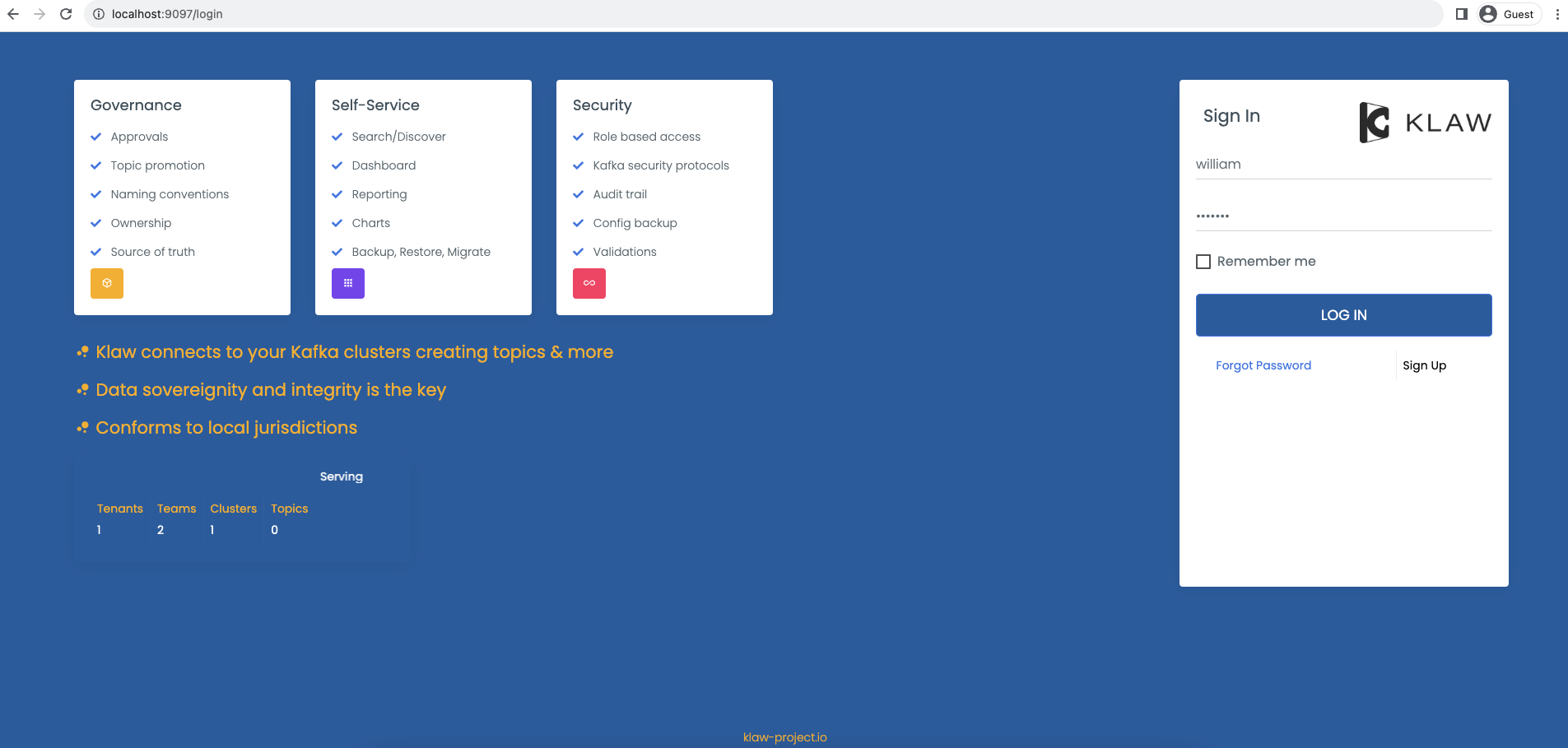
Now you may log into Klaw on http://localhost:9097 with
credentials william : welcome
3. Topics catalog page
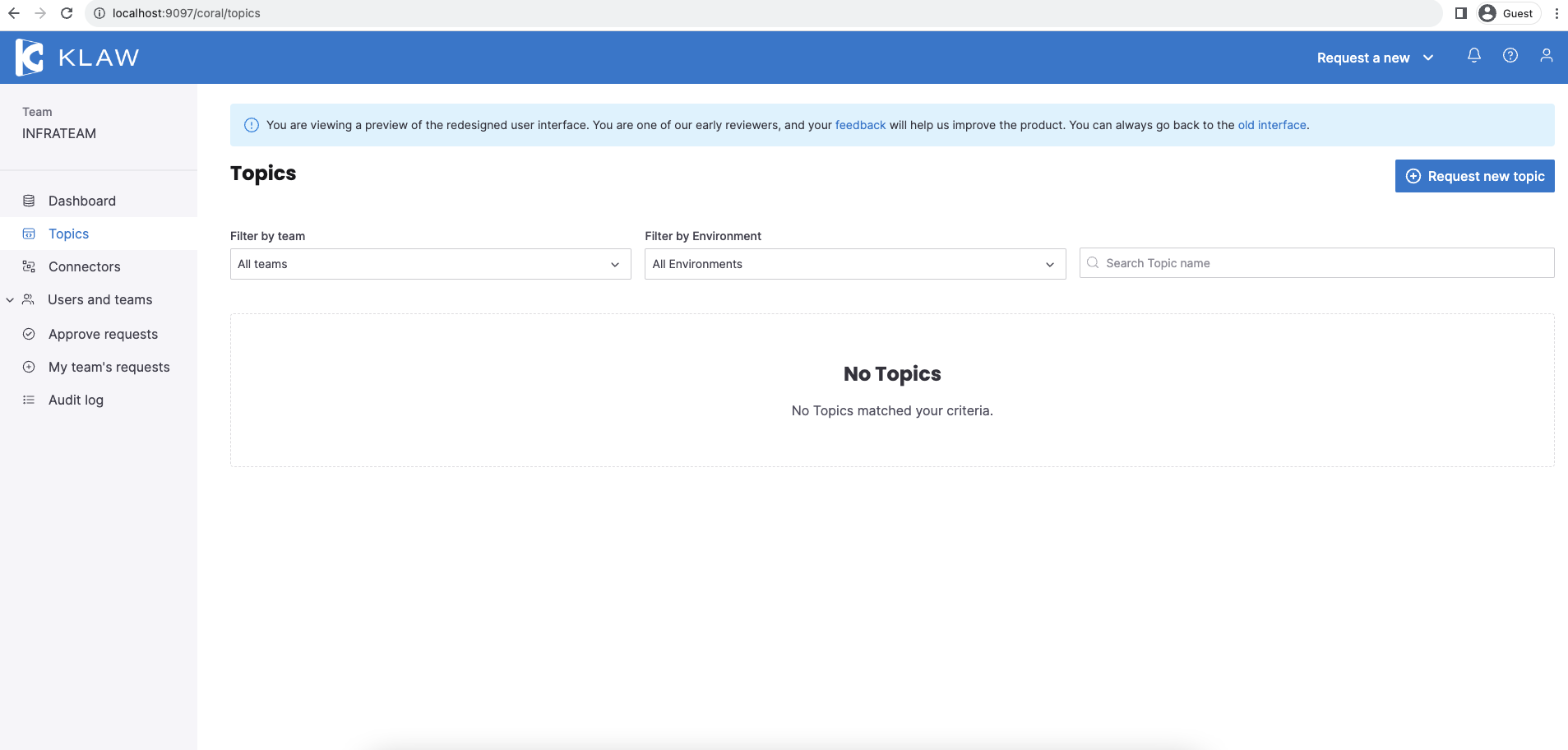
After logging in you will be redirected to our brand-new feature rich React UI.
You can "Request new topic" from the top right corner, or you can select the dropdown "Request a new" to view all your options.
4. Request for topic
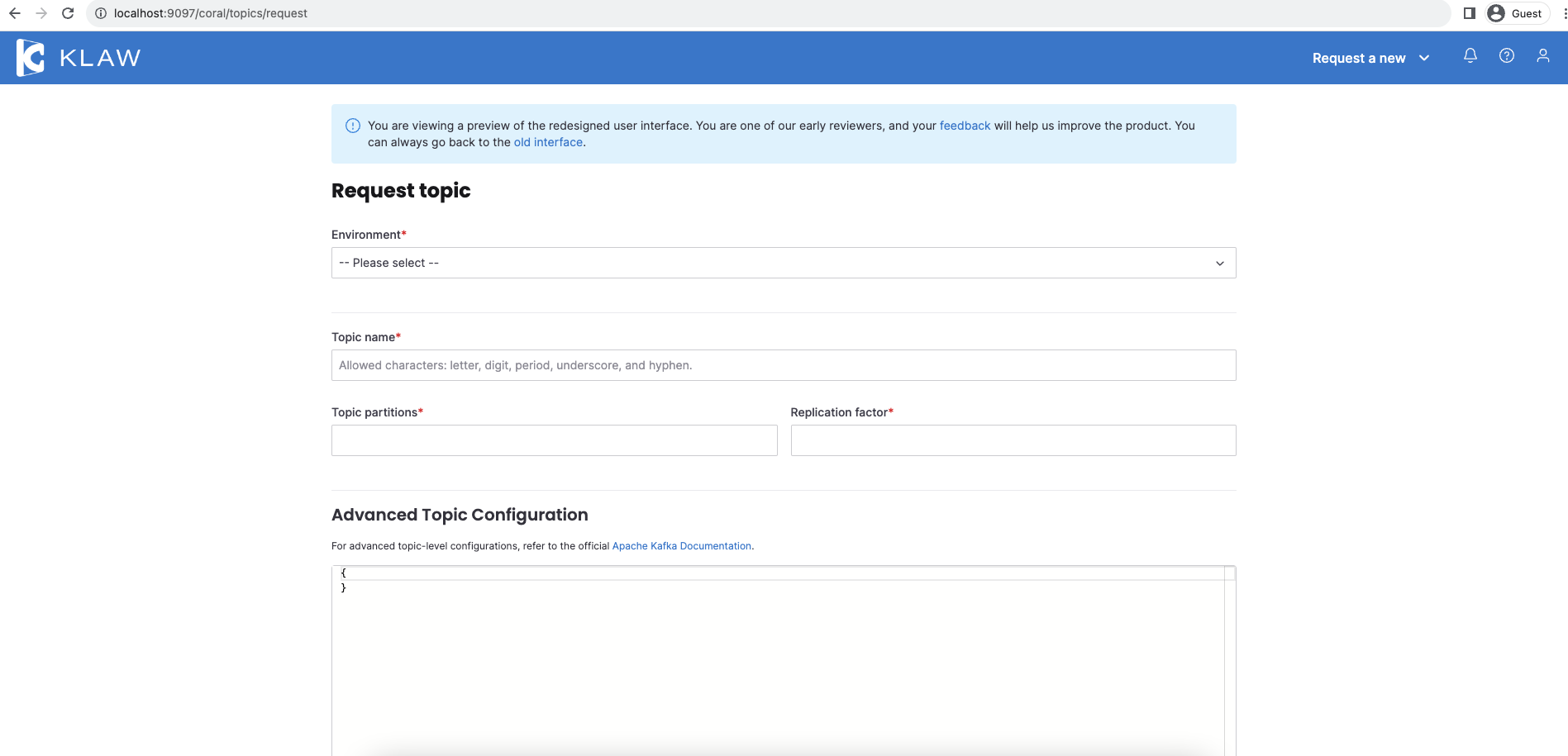
Fill in the details
- Select STG environment
- Fill in a topic name "testtopic" for example
- Leave partitions, replication factor and advanced configuration to defaults
- Fill in text a topic description. 'Topic for demo' for example
- Submit
This will create a topic request for your team member to approve.
5. View your request
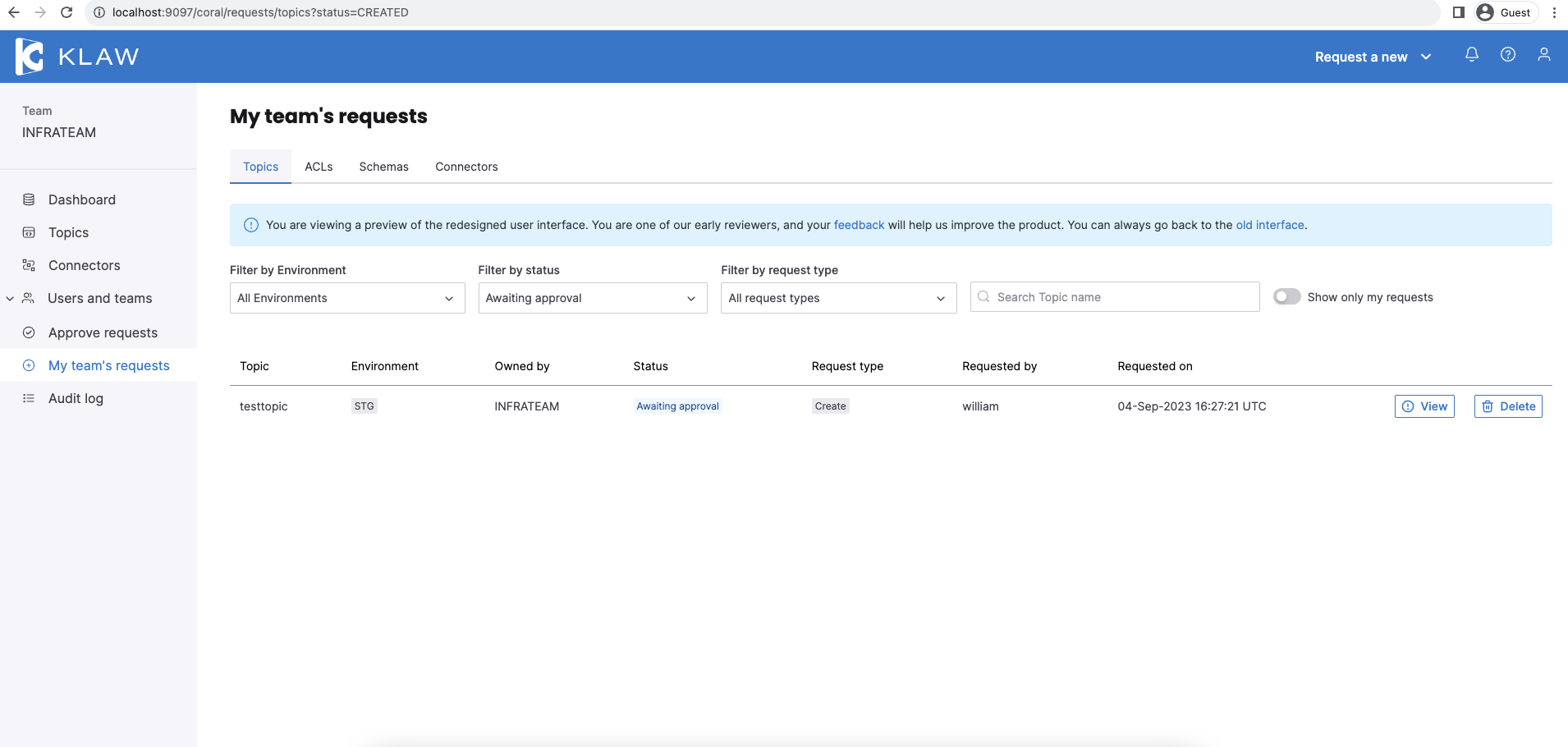
Newly created topic request is now visible in My team's requests menu on the sidebar
6. Logout
On the top right click on the profile and again click on the profile -> logout
william is now logged out.
7. Login again
Now login with credentials jennifer : welcome
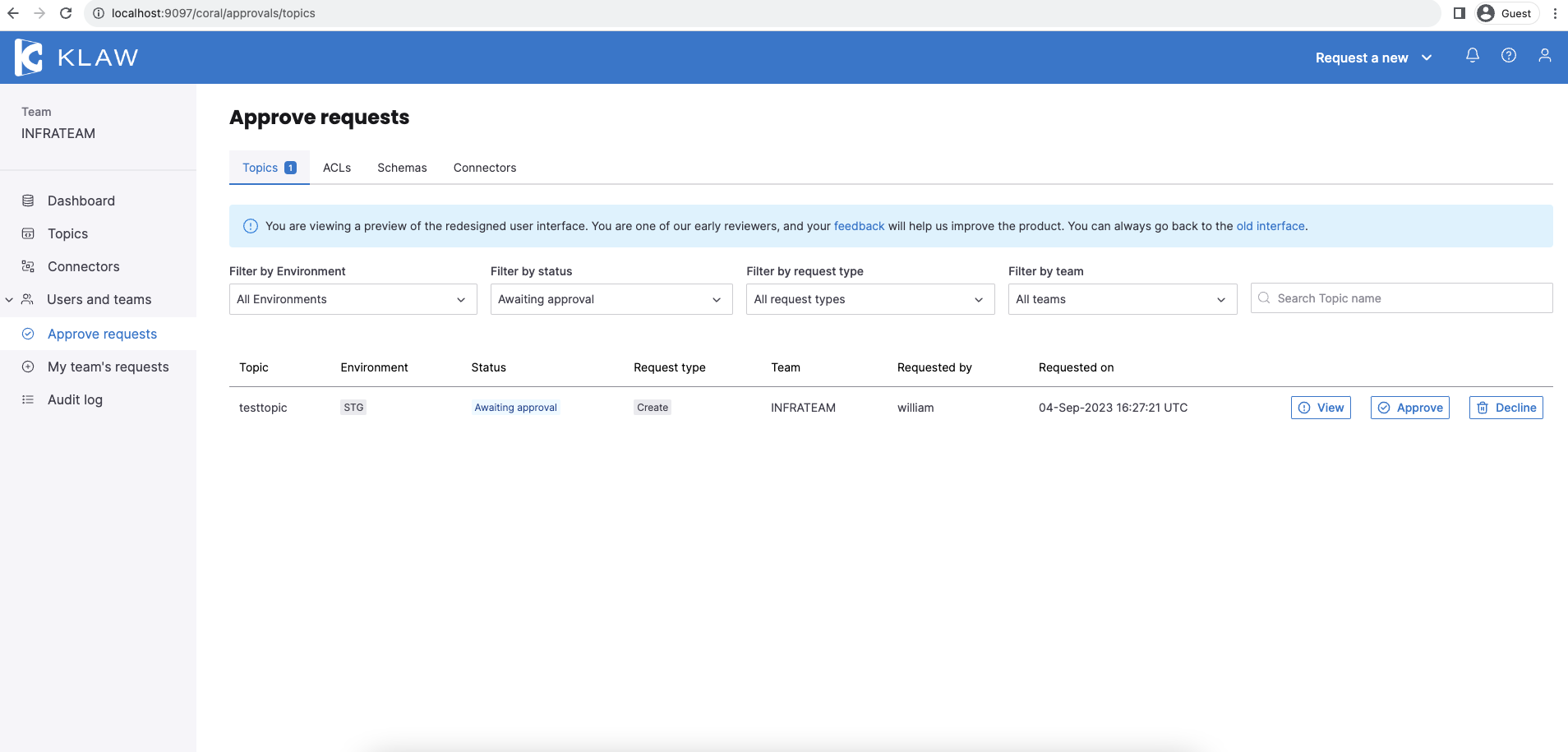
8. Go to Approve requests page
From the menu, click on "Approve requests" menu.
9. Approve request
Here there is a pending request to be approved or declined. Click on view to review and approve it.
10. That's it. Topic is created on Apache Kafka cluster
To verify
should display the newly created Apache Kafka topic. You can also try creating a schema for the topic from the "Request a new" dropdown.